
Star Wars Zero Company PC Visual Settings Guide
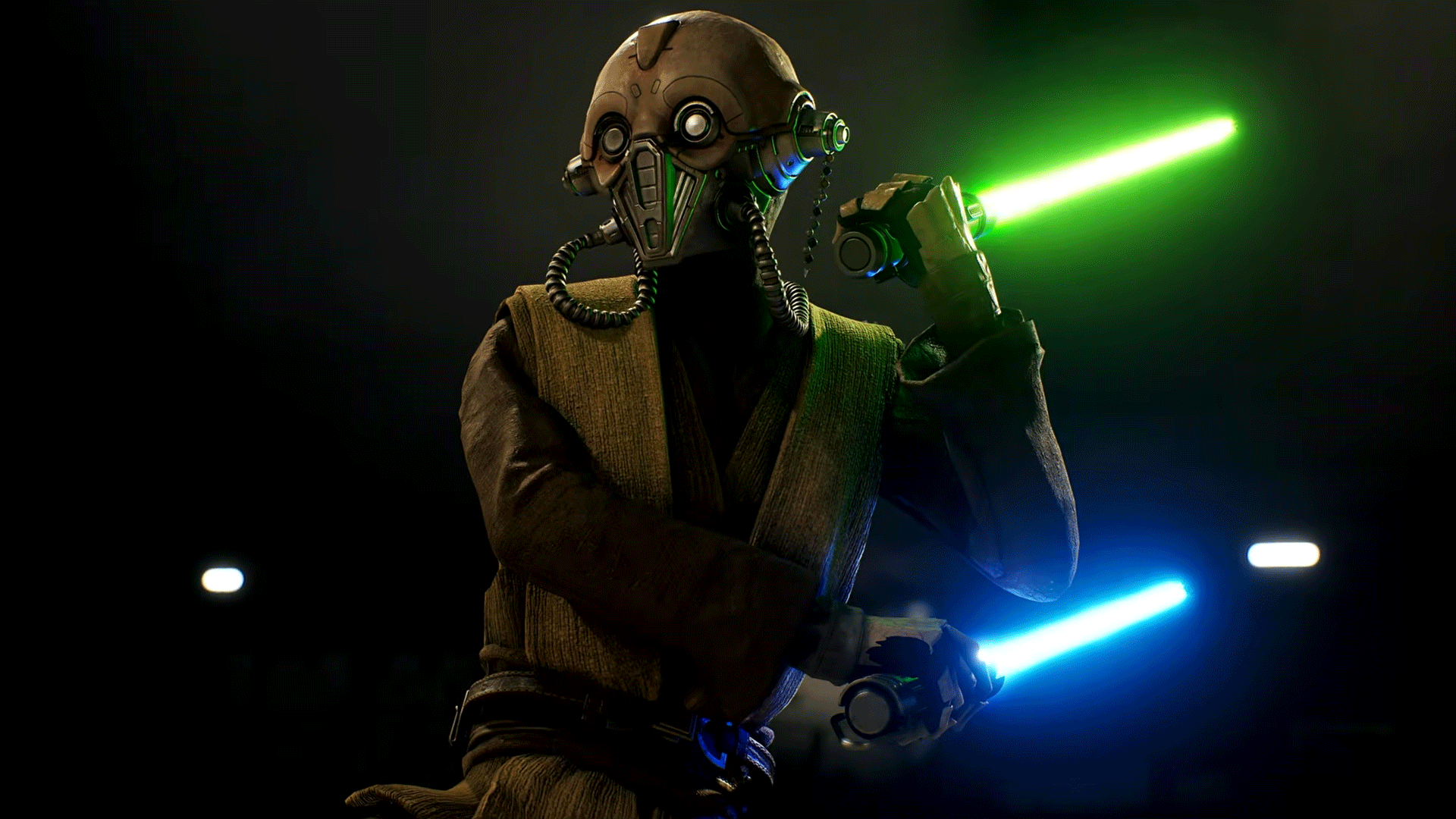
Taming the Clone Wars: How to Master the Performance of Star Wars Zero Company
When a new tactical experience lands in the Star Wars universe, fans expect epic scope and flawless execution. Star Wars Zero Company arrives promising a deep dive into the Clone Wars, setting the stage for intense tactical gameplay. However, for many players, the journey to mastering this new world has been less about the battles and more about wrestling with performance. Despite the exciting premise, the game has faced performance challenges, particularly struggling with frame drops and instability, which can make the experience frustrating.
Whether you are running on a high-end rig or a more modest system, optimizing performance in Zero Company requires a strategic approach. The core issue often lies in the game’s reliance on specific engine setups, making it tricky for low-to-mid-range hardware. While patches are likely to smooth things out over time, achieving a truly silky-smooth experience still demands smart configuration.
The performance bottleneck often comes down to the CPU, even when powerful graphics cards are involved. Testing revealed that even systems equipped with top-tier components, like an Ryzen 7 9850X3D paired with an RTX 5090, can still see CPU usage spike during intense mission moments. This tells us that understanding the settings is key to maximizing the frame rate you can achieve.
Fine-Tuning the Engine: A Deep Dive into Settings
Because the game utilizes Unreal Engine 5, tuning can feel like navigating a complex menu, but by understanding where the performance hits are, you can find the sweet spot. Here is a breakdown of some crucial settings and how they impact your experience:
Windowing Mode: This choice fundamentally changes how the game interacts with your display. If you frequently switch between applications, Borderless Window is often the most practical option, offering the illusion of fullscreen while allowing easy alt-tabbing. For single-monitor setups, Fullscreen is straightforward, but if you manage multiple screens, Borderless Window is your best bet.
Upscaling and Frame Generation: To boost frame rates, upscaling technologies like DLSS (for Nvidia), FSR (for AMD), or XeSS (for Intel) are essential. Furthermore, enabling Frame Generation uses AI to create new frames, which can dramatically increase smoothness, especially in turn-based scenarios like this game, though it introduces a slight latency cost.
Latency Management: To minimize input lag, technologies like Nvidia Reflex or AMD Anti-Lag work by synchronizing rendering with your CPU, ensuring that frames are rendered only when the CPU delivers them. Turning these on is a simple step toward a more responsive game.
Visual Fidelity Trade-offs: Achieving high visual quality often involves balancing demanding features against performance limitations. For instance, when you are CPU-bound, reducing settings like Hidden Objects Detail and Effect Quality can provide immediate gains. Similarly, settings that heavily tax the GPU, such as Shadow Quality, Global Illumination, and Reflections, are prime candidates for adjustment if you are seeking higher frame rates.
Texture quality, Shading Quality, and View Distance also play a role, often impacting your VRAM usage alongside raw frame rate. A good strategy is to monitor your VRAM usage during gameplay; if you are close to your limits, adjusting texture settings to Medium or Low might be necessary. Ultimately, finding the perfect configuration involves understanding your hardware and making calculated choices to ensure that the epic scale of the Clone Wars is experienced without performance hiccups.
Buy on Amazon
Credit